
What is Delivery Automation
Introduction
Section titled “Introduction”Delivery Automation helps you send emails gradually and strategically, avoiding spam filters and Gmail restrictions. Sending too many emails too quickly damages your sender reputation and can get your account temporarily suspended.
This feature gives you precise control over when, how fast, and on which days your emails are sent—essential for maintaining high deliverability and staying within Gmail’s limits.
What is Delivery Automation?
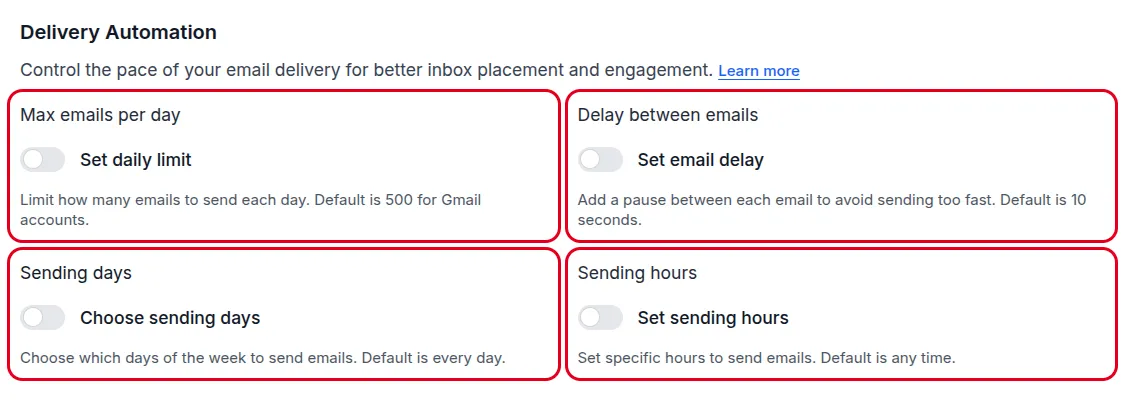
Section titled “What is Delivery Automation?”Delivery Automation controls the pacing of your email campaigns. Instead of blasting all emails instantly, you can:
✅ Set daily email limits – Stay within Gmail’s quotas and avoid account suspension
✅ Add a delay between emails – Use a fixed pause or a random range
✅ Choose specific sending days – Send only on weekdays or your highest-engagement days
✅ Set sending hours – Send only during business hours or optimal times
This controlled approach is critical for:
- Warming up new accounts without triggering spam filters
- Maintaining sender reputation on established accounts
- Maximizing engagement by sending at the right times
- Complying with Gmail’s policies and daily quotas
How to Configure Delivery Automation
Section titled “How to Configure Delivery Automation”1. Set Maximum Emails per Day
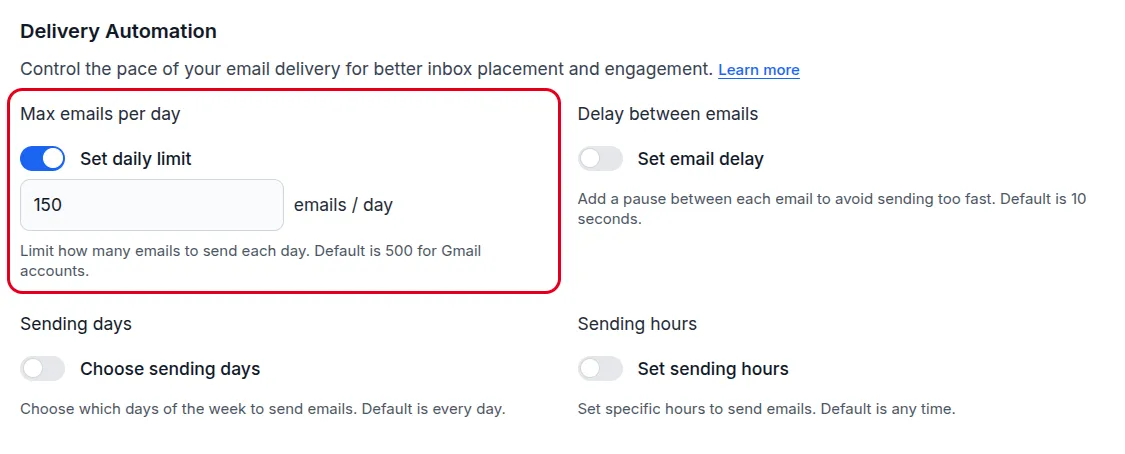
Section titled “1. Set Maximum Emails per Day”Control your daily sending volume to stay within Gmail’s limits and protect your account.
How to configure:
- Turn on Set daily limit
- Enter your desired daily email limit
- If your contact list exceeds this limit, BetterMerge automatically spreads sending across multiple days
Recommended limits:
- New accounts (< 1 month old): Start with 20-50 emails/day
- Warming up (1-2 months): Gradually increase to 100-200 emails/day
- Established accounts: Use up to 500 (Gmail) or 2,000 (Workspace)
2. Set the Delay Between Emails
Section titled “2. Set the Delay Between Emails”Add a pause between emails to control how fast your campaign sends.
How to configure:
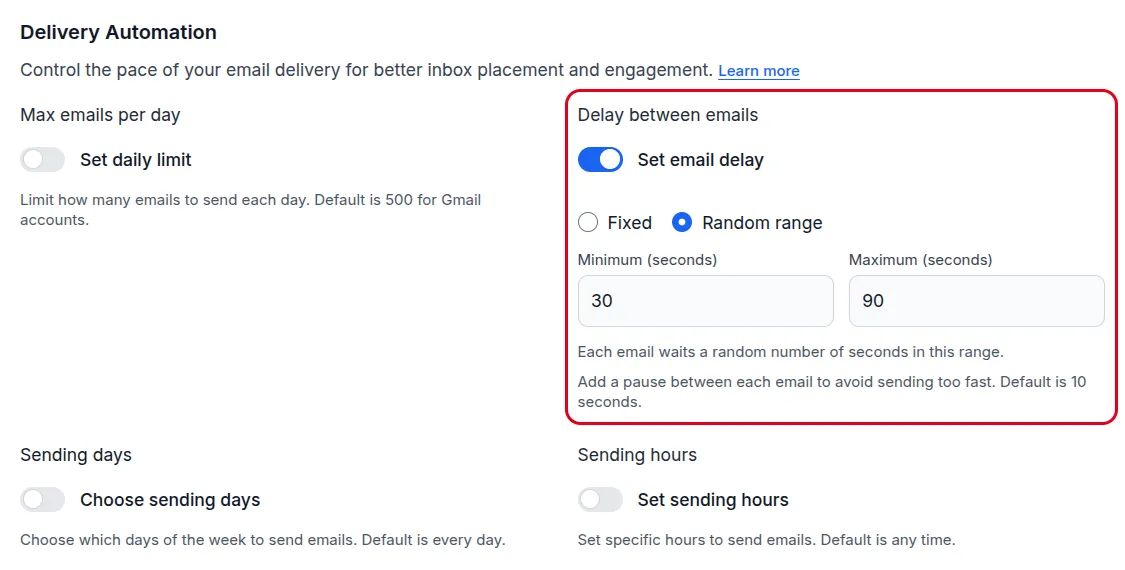
- Turn on Set email delay
- Choose a delay type:
- Fixed: every email waits the same number of seconds
- Random range: each email waits a random number of seconds between the minimum and maximum you enter, for example 30-90 seconds
- Enter whole seconds between 3 and 3,600
When this option is off, or your plan doesn’t include custom delays, BetterMerge waits 10 seconds between emails.
Recommended delays:
- New accounts: 60-120 seconds (1-2 minutes)
- Established accounts: 30-60 seconds
- High-volume sending: 10-30 seconds
A longer delay spreads sending out but makes campaigns take longer to finish. With a random range, the estimate before launch shows a range of days.
You can change delivery settings after a campaign starts: open its report and click Edit delivery. Changes apply from the next scheduled email.
3. Choose Sending Days
Section titled “3. Choose Sending Days”Optimize engagement by sending only on days when your audience is most active.
How to configure:
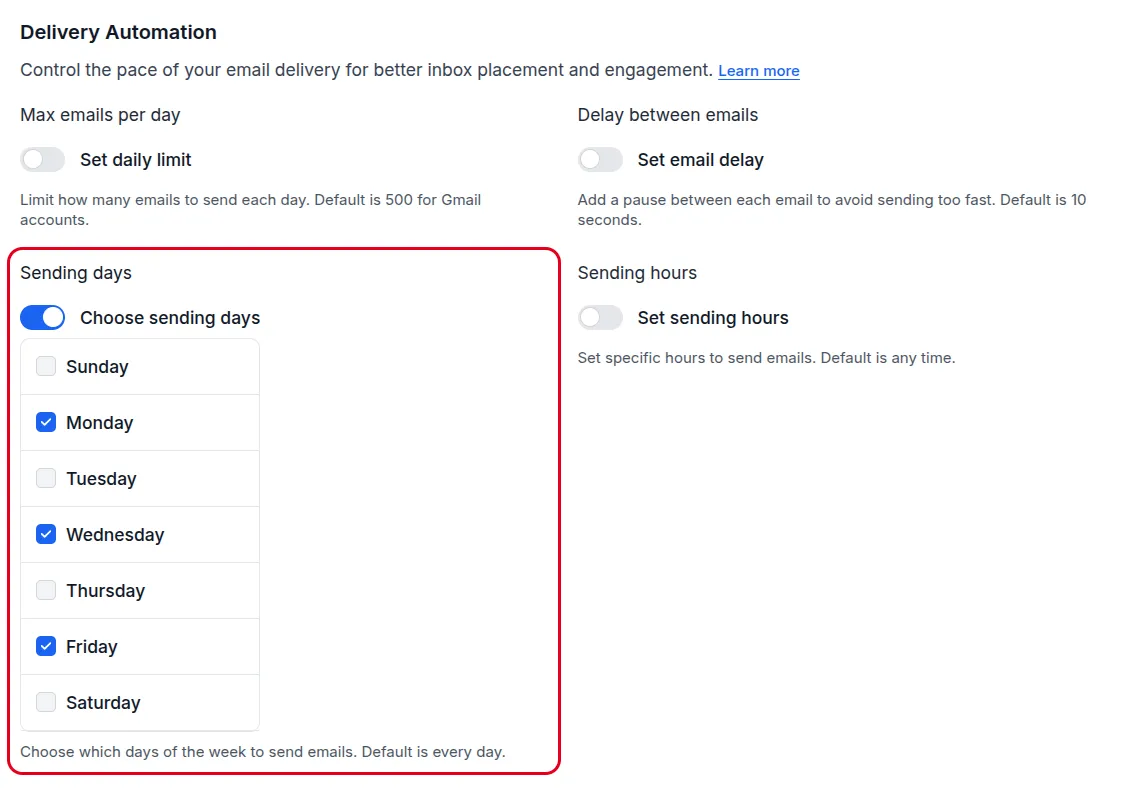
- Turn on Choose sending days
- Check the days you want emails sent
- Emails will only be delivered on selected days
Recommended schedules:
- B2B campaigns: Tuesday-Thursday (highest open rates)
- B2C campaigns: Any day, including weekends
- New accounts (warmup): Monday-Friday only for the first month
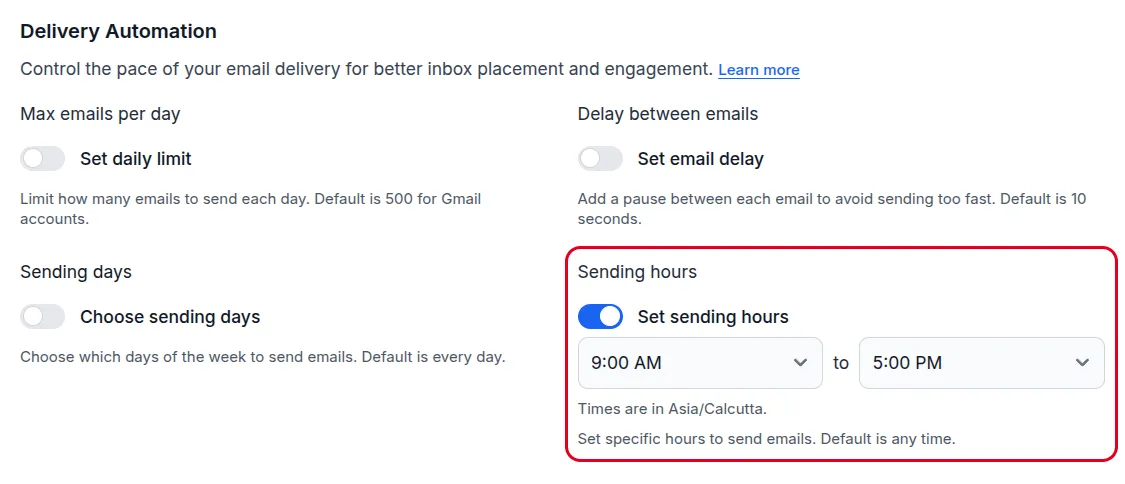
4. Set Sending Hours
Section titled “4. Set Sending Hours”Send emails during specific hours when recipients are most likely to engage.
How to configure:
- Turn on Set sending hours
- Choose a start and end time, for example 9:00 AM to 5:00 PM
- Emails are only sent within these hours, in the time zone shown below them
Recommended sending hours:
- B2B (office workers): 9:00-17:00 (9 AM - 5 PM)
- B2C (consumers): 10:00-20:00 (10 AM - 8 PM)
- International audiences: Adjust for recipient time zones
Why Use Delivery Automation?
Section titled “Why Use Delivery Automation?”| Benefit | Impact |
|---|---|
| Better Deliverability | Gradual sending avoids spam filters and improves inbox placement |
| Account Protection | Stay within Gmail’s limits and avoid temporary suspensions |
| Higher Engagement | Send when recipients are most active and responsive |
| Reputation Building | Mimic natural sending patterns to build trust with email providers |
| Warmup Automation | Perfect for gradually increasing volume on new accounts |
Common Use Cases
Section titled “Common Use Cases”New Account Warmup
Section titled “New Account Warmup”Setup:
- Max emails/day: 20-50 (increase weekly)
- Delay between emails: random range, 90-120 seconds
- Sending days: Monday-Friday
- Sending hours: 10:00-16:00
B2B Cold Outreach
Section titled “B2B Cold Outreach”Setup:
- Max emails/day: 100-200
- Delay between emails: random range, 45-60 seconds
- Sending days: Tuesday-Thursday
- Sending hours: 9:00-17:00
Newsletter Campaign (Established Account)
Section titled “Newsletter Campaign (Established Account)”Setup:
- Max emails/day: 500-2,000 (based on account type)
- Delay between emails: random range, 20-30 seconds
- Sending days: All days
- Sending hours: 8:00-20:00
Best Practices
Section titled “Best Practices”✅ Start conservative – It’s easier to increase volume than recover from being flagged
✅ Monitor metrics – Track bounce rates, spam complaints, and open rates after enabling automation
✅ Adjust based on results – If metrics decline, slow down your sending
✅ Maintain consistency – Don’t alternate between 500 emails one day and 0 the next
✅ Combine with other strategies – Use with Email Verification and clean lists
Summary
Section titled “Summary”Delivery Automation is your insurance policy against spam filters and account restrictions. By controlling pace, timing, and volume, you ensure emails reach inboxes while building a strong sender reputation.
Set it once, let it run automatically – BetterMerge handles the timing and pacing so you can focus on writing great emails that convert.
New to BetterMerge?Start free — 50 emails/day, no credit card. Questions? Contact support.
BetterMerge is an independent product not affiliated with, endorsed by, or connected to Google LLC. Gmail, Google Sheets, Google Workspace, and Google Workspace Marketplace are trademarks of Google LLC.