
Manage Your Contact Lists
Introduction
Section titled “Introduction”This article explains how contact lists work in BetterMerge and how you can use Google Sheets to manage recipients for your email campaigns.
How It Works
Section titled “How It Works”- Your Google Sheet acts as the contact list, and each sheet within it can serve as a separate list.
- The first row must contain column names (headers), which are used as merge tags in email templates.
- You can organize contacts across multiple spreadsheets and sheets within each file.
- To exclude contacts from a campaign, you can hide rows in your sheet or use the segmentation rules for advanced filtering.
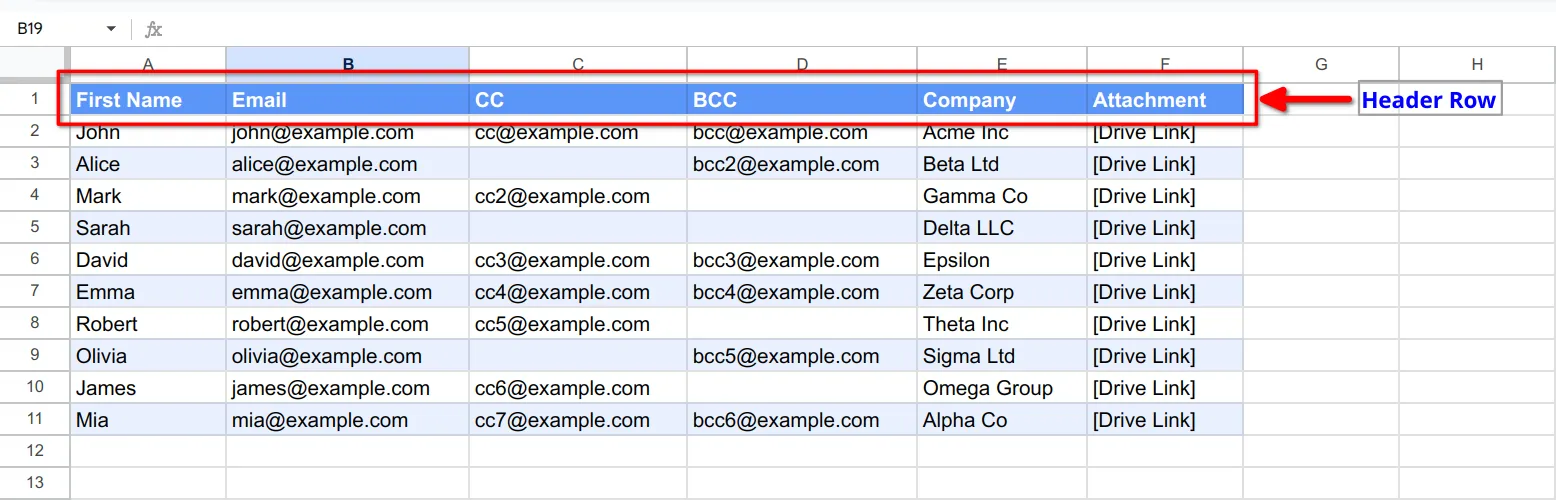
Benefits of Using Google Sheets
Section titled “Benefits of Using Google Sheets”- Flexible Organization – Use different sheets for different campaigns, teams, or purposes.
- Dynamic Updates – Modify contacts in real time without needing to re-import lists.
- Advanced Filtering – Hide or filter rows to control which recipients receive emails.
Merge Tags (Dynamic Fields)
Section titled “Merge Tags (Dynamic Fields)”Column names in your sheet act as merge tags in email templates. For example:
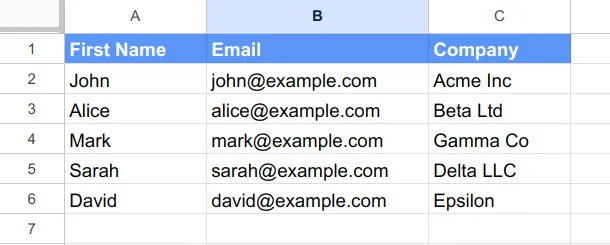
In your email template, you can use:
Hello {{ First Name }},We have an update for {{ Company }}!Each email is automatically personalized based on your Google Sheets data.
Segment Contact List Using Rules
Section titled “Segment Contact List Using Rules”BetterMerge allows you to filter your contact list based on Google Sheets data and email tracking data. This ensures emails go only to relevant contacts, improving engagement and deliverability. Learn more about the Segmentation Rules feature.
Next, learn how to set up your contact list properly.
New to BetterMerge?Start free — 50 emails/day, no credit card. Questions? Contact support.
BetterMerge is an independent product not affiliated with, endorsed by, or connected to Google LLC. Gmail, Google Sheets, Google Workspace, and Google Workspace Marketplace are trademarks of Google LLC.