
Set Up Your Contact List
Introduction
Section titled “Introduction”This article explains how to properly set up your contact list in Google Sheets, including the required format and best practices.
Required Format
Section titled “Required Format”-
Column Headers:
- The first row of your sheet must contain column names (headers). These headers act as merge tags in your email templates.
- Example:
First Name,Email,Company, etc.
-
Email, CC, and BCC Columns:
- A column with email addresses is required. The column name can be anything (
Email,Recipient Email, etc.), but it must be consistent. - Optionally, you can also add CC and BCC recipients by creating columns (e.g.,
CC,BCC). - Each cell can contain only one email address for now. Support for multiple addresses in a single cell (e.g.,
abc@example.com, def@example.com) is coming soon.
- A column with email addresses is required. The column name can be anything (
-
Attachments Column:
- If you want to send personalized attachments, add an Attachment column.
- Each row should contain a Google Drive shared link to the file.
- Learn more about personalized attachments.
-
One Contact Per Row:
- Each row should represent a single contact.
- Avoid merging cells or using multi-line entries in a single row.
Contact List Example
Section titled “Contact List Example”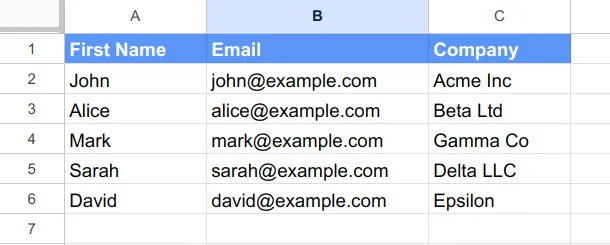
Best Practices
Section titled “Best Practices”- Reuse the same sheet for repeat campaigns – If you’re emailing the same contact list again, reuse the same sheet. Each campaign adds STATUS and LOGS columns, allowing you to track multiple campaigns in one place.
- Use a new sheet for different contact lists – If you’re working with a completely different contact list, create a new sheet to keep data organized and avoid confusion.
- Add new contacts at the end – Avoid inserting rows in the middle of a sheet when a campaign is in progress, as it may cause tracking issues. Instead, add new contacts at the end of the sheet.
- Keep data clean – Remove duplicates and ensure there are no empty rows within your list to prevent errors.
Next, learn how to manage your contacts effectively.
New to BetterMerge?Start free — 50 emails/day, no credit card. Questions? Contact support.
BetterMerge is an independent product not affiliated with, endorsed by, or connected to Google LLC. Gmail, Google Sheets, Google Workspace, and Google Workspace Marketplace are trademarks of Google LLC.