Gmail
How to Create Email Templates in Gmail
Gmail can save an email as a template and insert it into any new message. Here's how to turn templates on, create, use, update and delete them, send one as an automatic reply, and fill in names automatically.
Updated 3 min read
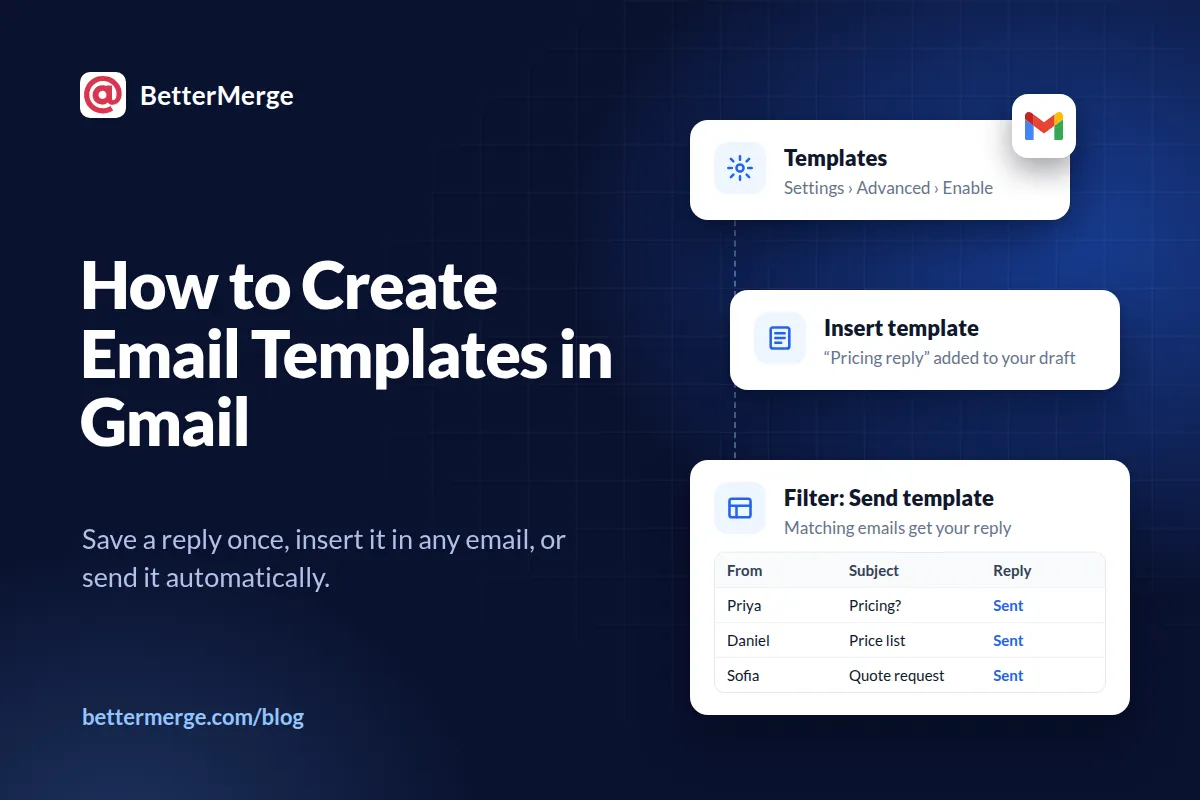
Gmail templates are saved emails you can drop into a new message with two clicks. They’re off by default. Turn them on under Settings > See all settings > Advanced, then write an email and choose More options > Templates > Save draft as template.
Templates work only in Gmail on a computer, not in the mobile apps. Here’s each step, plus how to reuse a template as an automatic reply.
Turn on templates
- In Gmail, click Settings (the gear icon) at the top right, then See all settings.
- Open the Advanced tab.
- Next to Templates, click Enable.
- Click Save Changes at the bottom of the page.
A Templates option now appears in the compose window’s menu.
Create a template
- Click Compose and write the email you want to reuse.
- At the bottom of the compose window, click More options (the three dots).
- Click Templates > Save draft as template > Save as new template.
- Name the template and click Save.
Leave the recipients empty. A template is the content of the email; you’ll choose who it goes to each time you use it.
Use a template
- Click Compose.
- Click More options > Templates.
- Under Insert template, choose the template.
- Add the recipients, edit anything that changes from email to email, and click Send.
If an email usually goes out with a file, attach it after you insert the template, and check the attachment before you send.
Update or delete a template
To change a template, insert it into a new email and make your edits. Then click More options > Templates > Save draft as template, and choose the template’s name under Overwrite Template.
To delete one, click More options > Templates > Delete template and pick the template. Google warns that a deleted template can’t be recovered.
Send a template as an automatic reply
Gmail can reply with a template whenever an email matches a filter. This works well for questions that always get the same answer, such as pricing requests or “is this role still open?”
- Click Show search options (the sliders icon) in the search bar.
- Enter what should trigger the reply, such as a word in the subject or the address the email was sent to. Click Search first if you want to check which emails match.
- Click Create filter.
- Tick Send template, choose your template, and click Create filter.
Keep the criteria narrow. A broad filter sends your reply to people who never asked the question.
What Gmail templates can’t do
A Gmail template is fixed text. If it says “Hi there,” every recipient gets “Hi there,” and if you want “Hi Priya,” you have to type it each time. That’s fine for a few emails a day. It stops being fine when the same email has to go to 50 people, each with their own name, company or due date.
That’s a mail merge. Gmail has a built-in version on certain paid Google Workspace plans, and add-ons like BetterMerge do it on any Gmail account. In BetterMerge, a template uses merge tags such as {{First Name}} and {{Company}} in the subject, body and preview text. Each tag is filled in from a column in your Google Sheet, and every person gets an individual email from your Gmail address. Snippets save reusable blocks, such as a booking link or a footer, for any template.
Templates, merge tags and snippets are on every plan, including the free one. Our template guide shows how to set one up.
FAQ
Can I use Gmail templates on my phone?
No. Google says templates can be turned on and used only in Gmail on a computer.
Why don’t I see Templates in the compose menu?
Templates are probably still turned off. Enable them under Settings > See all settings > Advanced, then click Save Changes.
Can a Gmail template include the recipient’s name automatically?
Not on its own. Templates don’t have placeholders. To fill in names and other details automatically, use a mail merge, which takes the details from a spreadsheet.