
Your Account Settings
Introduction
Section titled “Introduction”Open Settings from the left menu. Its tabs hold the account-wide options; most campaign options live in the campaign editor instead.
| Tab | What it’s for |
|---|---|
| General | Your Google account connection, and your email signatures. |
| Senders | The addresses you can send from: Gmail aliases and other Google accounts. See Senders and aliases. |
| Optional features | Email verification for all campaigns, and the status of reply and bounce tracking. |
| Tracking domain | Your own domain for open and click tracking links. See Custom tracking domain. |
| AI | Show or hide the AI Assistant, and choose the emails it learns your writing style from. See AI Assistant. |
| Appearance | Which helpers and layouts the editors show. See below. |
Plans, seats and billing are on the Subscriptions page, and your sending totals are on the Usage page. See Manage your subscription and team.
Your Google Connection
Section titled “Your Google Connection”The General tab shows whether BetterMerge can use your Google account to send from Gmail and read your Google Sheets:
- Connected: everything is working.
- Not connected or Outdated: BetterMerge needs your permission again, for example after you removed its access in your Google account or after a permissions change. Click Connect account and approve the permissions. Refresh checks the status again.
Campaigns can’t send while the connection is broken.
Appearance
Section titled “Appearance”The Appearance tab turns optional helpers on or off. Changes save straight away and apply to both the web app and the Google Sheets add-on.
General
- Show help text: guidance below form fields.
Template editor
- Show optional fields by default: shows the template name and preview text fields.
- Show merge-tag helper, Show merge-tag dropdowns and Show snippets dropdown: the tools in the template editor.
- Show unsaved-changes reminder: a reminder when manual changes aren’t saved yet.
Campaign editor
- Use classic layout: shows all campaign settings on one page instead of in tabs.
The template editor’s Preferences button opens the same template options, plus Show AI assistant. In Settings, that switch is on the AI tab.
Keyboard Shortcuts
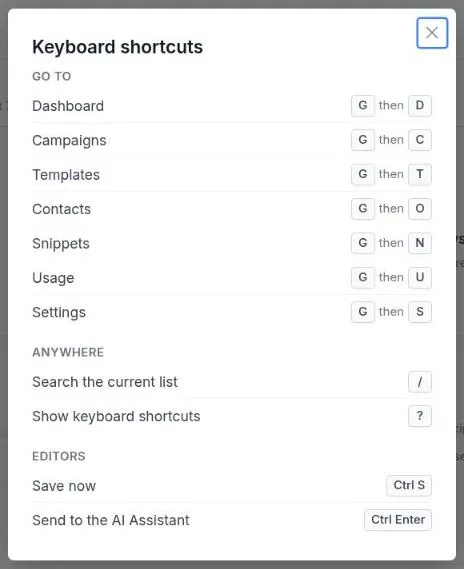
Section titled “Keyboard Shortcuts”In the web app, press ? to see all shortcuts.
| Keys | Action |
|---|---|
| G then D | Go to Dashboard |
| G then C | Go to Campaigns |
| G then T | Go to Templates |
| G then O | Go to Contacts |
| G then N | Go to Snippets |
| G then U | Go to Usage |
| G then S | Go to Settings |
| / | Search the current list |
| Ctrl+S | Save the campaign or template now |
| Ctrl+Enter | Send your instruction to the AI Assistant |
On a Mac, use ⌘ instead of Ctrl.
If Google Access Stops Working
Section titled “If Google Access Stops Working”If sending or your Google Sheets stop working, for example with a permissions error, open app.bettermerge.com/troubleshoot and try these steps in order:
- Reconnect your Google account: refreshes the permissions BetterMerge uses for Gmail and Sheets.
- Restart your workspace: reload BetterMerge, or in the add-on close it, reload the spreadsheet and open it again.
- Reset your local session: use this last. It signs you out so you can sign in fresh.
If none of these help, open Support from the left menu to raise a ticket, or email support@bettermerge.com.
New to BetterMerge?Start free — 50 emails/day, no credit card. Questions? Contact support.
BetterMerge is an independent product not affiliated with, endorsed by, or connected to Google LLC. Gmail, Google Sheets, Google Workspace, and Google Workspace Marketplace are trademarks of Google LLC.