
Start a Campaign from an Example
Introduction
Section titled “Introduction”Campaign starters set up a common campaign for you. One click creates three things:
- a Google Sheet with the right columns and three sample rows,
- an email template with merge tags already in place,
- a draft campaign linked to both, with its settings filled in.
Every sample row uses your own email address, so a test or an early launch reaches only you. Nothing is sent until you start or schedule the campaign.
The Starters
Section titled “The Starters”| Starter | Plan | What it sets up |
|---|---|---|
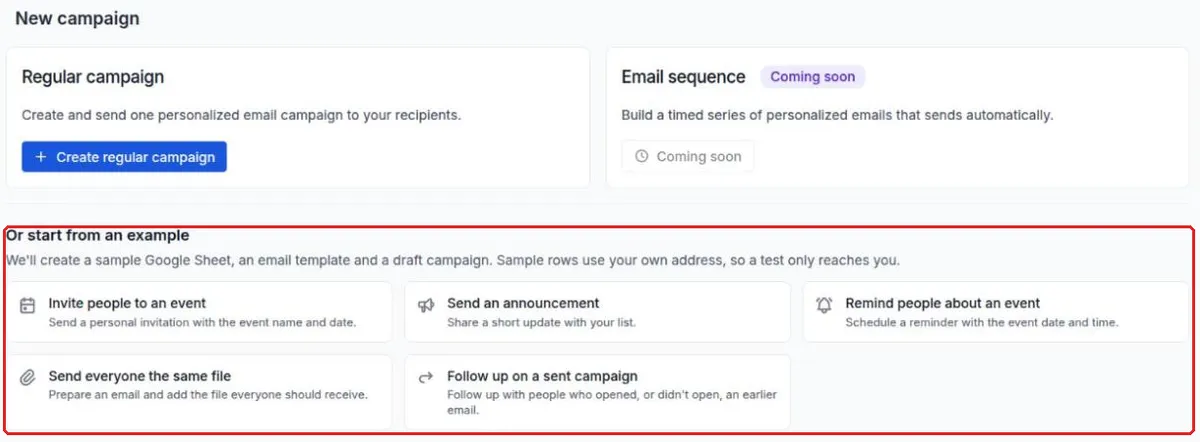
| Invite people to an event | Free | A personal invitation with the event name and date. |
| Send an announcement | Lite | A short update to your list. |
| Remind people about an event | Lite | A reminder with the event date and time, set to send 24 hours after you create it. |
| Send everyone the same file | Lite | An email ready for one file that everyone receives. |
| Follow up on a sent campaign | Lite | A follow-up to people who opened, or didn’t open, an earlier campaign. It reuses that campaign’s sheet. |
Starters above your plan show a plan badge. Clicking one opens the upgrade options.
Step 1: Choose a Starter
Section titled “Step 1: Choose a Starter”- Click New campaign.
- Under Or start from an example, click a starter.
BetterMerge creates the sheet, the template and the draft, then opens the campaign editor.
Following Up on a Sent Campaign
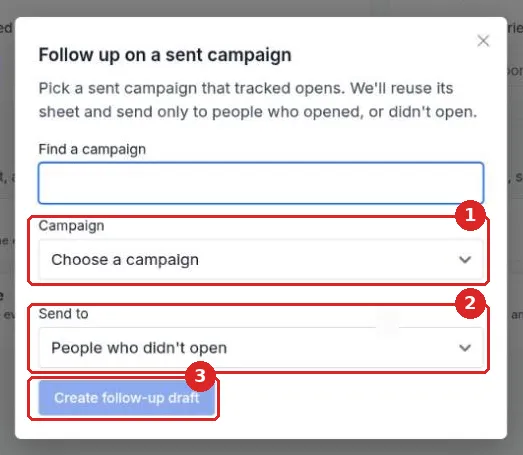
Section titled “Following Up on a Sent Campaign”Follow up on a sent campaign opens a window first:
- Under Campaign, choose one of your sent campaigns that tracked opens. Use Find a campaign to search.
- Under Send to, choose People who opened or People who didn’t open.
- Click Create follow-up draft.
The follow-up uses the earlier campaign’s Google Sheet, so no new sheet is created.
Step 2: Check the Setup Summary
Section titled “Step 2: Check the Setup Summary”The editor opens with a summary titled after the starter, for example “Set up from the ‘Invite people to an event’ example”.
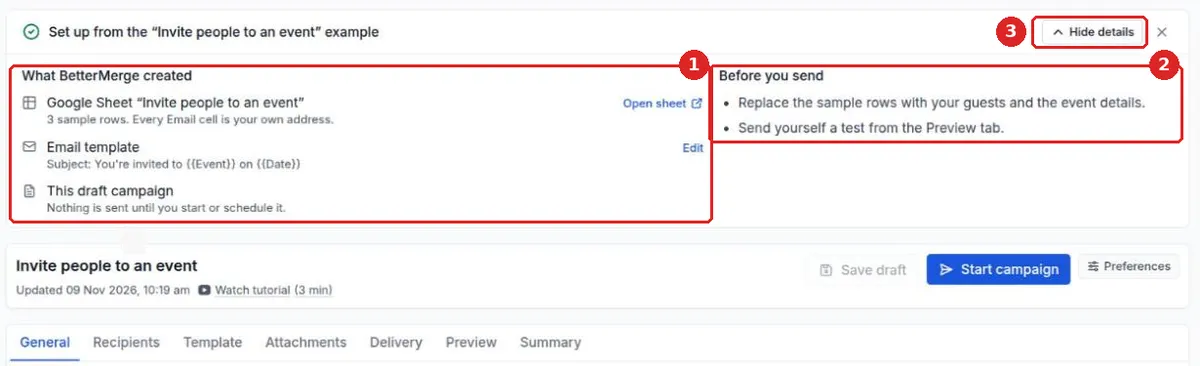
- What BetterMerge created lists the Google Sheet, with Open sheet; the email template and its subject, with Edit; and the draft campaign, with any saved settings such as the reminder’s send time. For a follow-up, it shows the earlier campaign’s sheet and the group you chose.
- Before you send lists what is left to do, such as replacing the sample rows, adding your file to the template, or sending yourself a test.
- Hide details collapses the summary. Close it with × when you’re done.
Step 3: Replace the Sample Rows
Section titled “Step 3: Replace the Sample Rows”Click Open sheet in the setup summary and replace the three sample rows with your own recipients. Keep the column names in the first row, because the template’s merge tags use them. You can add more columns; see Set up your contact list.
Step 4: Edit the Email
Section titled “Step 4: Edit the Email”The template is a starting point. Change the wording to fit your message. For Send everyone the same file, add the file to the template; see Add attachments.
Step 5: Test and Launch
Section titled “Step 5: Test and Launch”- Send yourself a test from the Preview tab.
- Check the Summary tab for anything missing.
- Start the campaign, or schedule it from the Delivery tab.
The reminder starter saves a send time on the draft, but nothing is scheduled until you click Schedule. The rest of the launch works like any other campaign; see Create a campaign.
Frequently Asked Questions
Section titled “Frequently Asked Questions”Why do all sample rows have my email address?
Section titled “Why do all sample rows have my email address?”So that a test, or a launch before you replace the rows, only reaches you. If you launch with the sample rows still in place, BetterMerge sends one email and skips the other two rows as duplicates.
Can I use my own Google Sheet instead?
Section titled “Can I use my own Google Sheet instead?”Yes. On the Recipients tab, choose another Google Sheet and tab. Make sure its column names match the merge tags in the template, or edit the template to match.
Where is the new Google Sheet saved?
Section titled “Where is the new Google Sheet saved?”In your Google Drive, named after the starter, for example “Invite people to an event”.
Can I delete a starter draft?
Section titled “Can I delete a starter draft?”Yes. It’s an ordinary draft campaign. Delete it from the campaign list like any other draft. The Google Sheet and the template stay until you delete them.
New to BetterMerge?Start free — 50 emails/day, no credit card. Questions? Contact support.
BetterMerge is an independent product not affiliated with, endorsed by, or connected to Google LLC. Gmail, Google Sheets, Google Workspace, and Google Workspace Marketplace are trademarks of Google LLC.